Skwela for School Heads
For owners and school heads: set it up once, see the whole school
The choices an administrator makes once, the school's own books for the year, and a record of who did what.
Request a demoSchool Configuration
The school-wide choices an administrator makes once, in one place.
- The tuition schedule follows your school year, June to March by default, with a monthly due day you choose.
- Your school's logo and colors become the app's theme and appear on every printed document.
- You decide whether families may pay online, and which e-wallet and bank channels they see.
- You set the passing grade that decides Passed or Failed.
- Tuition Schedule
- The installment calendar: first and last month of the school year and the monthly due day.
- School Branding
- Your school's name, logo, colors and signatories.
School Books
The school's own money for a school year: what came in, what went out, and what is still owed.
- The Ledger lists every money movement in and out for the school year.
- Billed, Paid and Uncollected always add up: Billed = Paid + Uncollected.
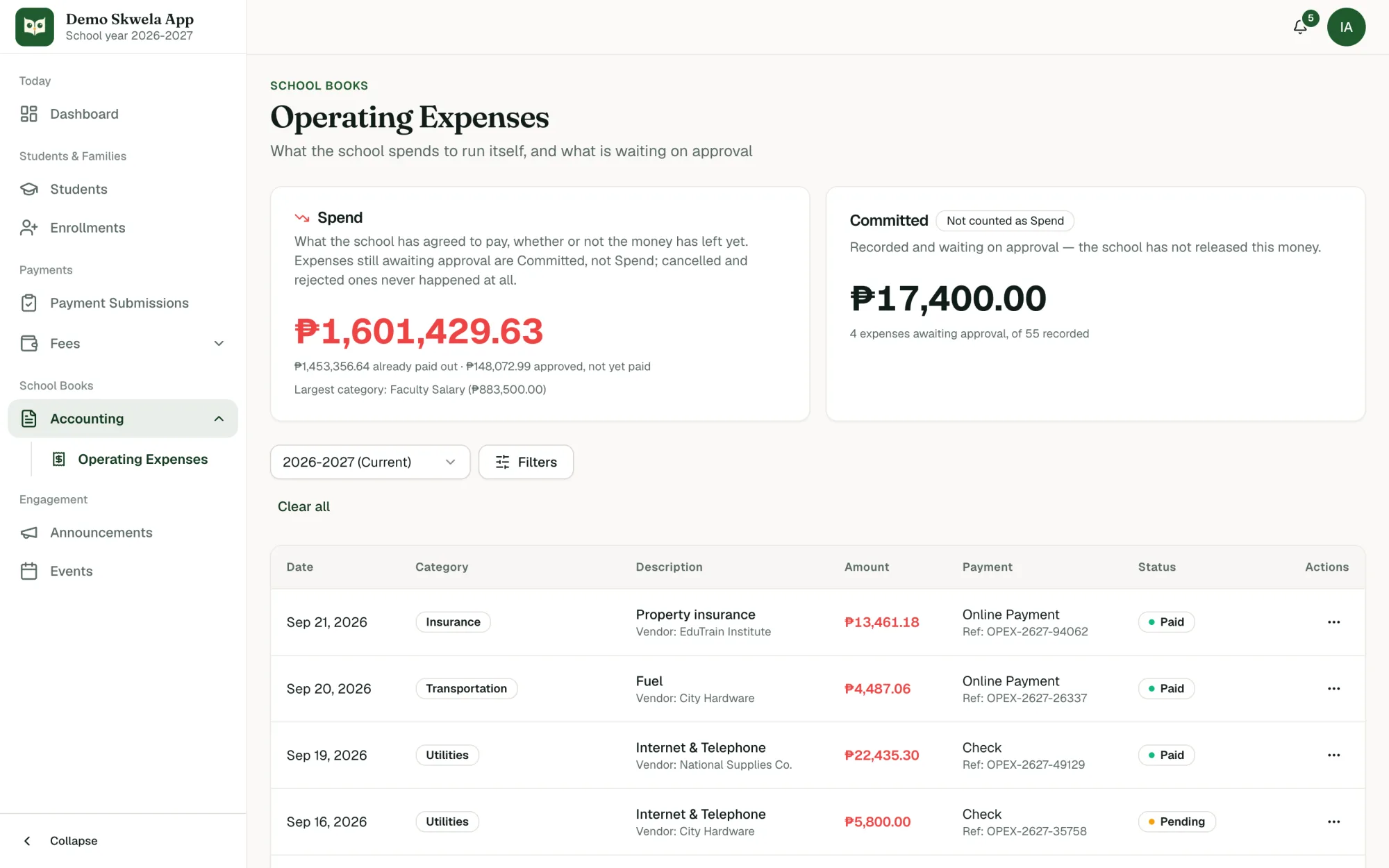
- Operating expenses are recorded with a description and an optional vendor, and move from Pending to Approved to Paid.
- Payroll runs produce payslips, and a paid run can post itself to operating expenses.
- Balance statements email each family its fees, payments and balance; families with no email on file are listed so staff can reach them another way.
- Collected
- Money the school actually received, other fees included.
- Billed
- What students are charged, after approved discounts.
- Paid
- The part of Billed that families have settled.
- Uncollected
- What families still owe; Billed = Paid + Uncollected.
- Ledger
- Every peso in and out, one entry at a time.
Administration
Who can do what, and a record of what was done.
- Each staff role sees only the screens its permissions allow.
- The Activity Log records who did what, and when.
- An administrator can sign in as another staff member to help them, and the Activity Log marks every action taken that way with the administrator who took it.
- Roles & Permissions
- What each role in your school may see and change.
- Activity Log
- A record of who did what, and when.
Other offices
Registrar
Enrollment season, requirements, guardians and the paper the school issues, in the words your office already uses.
Skwela for RegistrarCashier / Accounting
From the payment window to the school's own books, with the same figures on both sides.
Skwela for Cashier / AccountingTeachers
Encoding, release, and the faculty record behind each teacher.
Skwela for TeachersParents & Students
The Family Portal shows what the school's own records show, and nothing your school has not released.
Skwela for Parents & Students
See it with your own school's work in mind
Request a demo and a person replies within 1 working day to set a time. We show each office its own screens, with sample data.
Request a demo